Assignments
Recording an Assignment
Press the Record button to start recording an assignment. This starts with a small dialog asking to provide the recording name and whether to start recording immediately or pause until you press the continue button. Starting in pause mode allows traveling from the CP to assigned location without creating an unintentional initial track. Additionally, while paused you may want to import the area shape from a GPX or JSON file (see imports).
Lokate only shows button functions available per the current mode. For example, if you are not recording an assignment, only the Start button is presented.
 Start
Start  Pause
Pause  Tools Menu
  Stop
Stop While recording, you may pause the GPS recording. This may be necessary if you are transported or stay in place for a while and do not wish to record this data. Pausing also saves battery power. To activate the Pause button, you must press and hold for 0.75 seconds — this prevents accidental presses when the phone is in your pocket.
Marking a Location
To mark a location of importance, press the Mark button. As with the Pause button, you must press and hold to activate. Marking a location brings up a dialog that allows you to type a note, add one or more pictures and give the marked location a name (top left corner). Pressing OK without providing any other information only marks the location. Any marked location can be edited later in the Assignments Log.
Images taken with Lokate are not stored in the phone's general Photo/Album as they may contain sensitive information. Image meta data contain GPS location and heading so that these can be shared with Search Command or Law Enforcement preserving exact location and direction.
 Mark location
 Finish Recording
To finish and save a recording, press and hold the Pause button. Then press and hold the Stop button. Press OK on the dialog that is presented. This stops and closes the recording. Lokate then clears the track(s) from the map and is ready for the next recording.
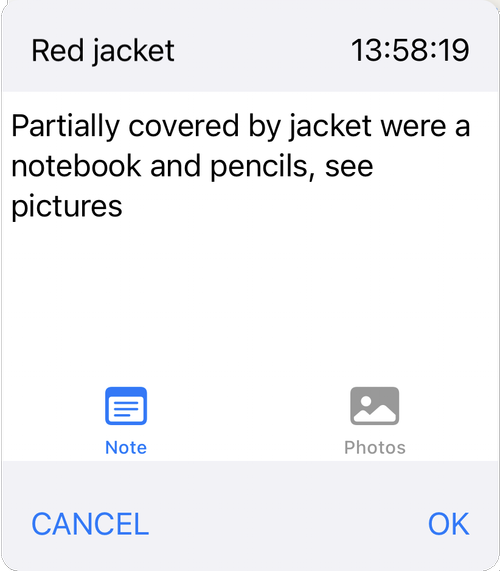
Example Marker Dialog
Working with Map Items
During many search operations, the inclusion of areas, lines, and markers ("Map Items") sourced from applications like SARTopo becomes essential. At any given moment during recording, you can import Map Items from SARTopo, and this can be performed multiple times (see import section).
Once Map Items are imported, access the Tool menu, followed by the Map Items submenu, to toggle visibility. Hiding an item does not remove it — it remains part of the recording. Within the Map Items submenu, elements are displayed in vertical rows with additional information upon clicking. Area Map Items indicate the size of the corresponding area and can be selected as "Active," designating them as your primary search area. Only one active area can exist at a time.
When an area is designated as "Active," it becomes readily distinguishable on the map. The information area on the map displays the distance to the nearest border and its corresponding heading. A positive distance indicates your location inside the area, negative means outside. This information is also mirrored on the Apple Watch.
Recording without Cellular Connection
Lokate downloads map data via Cellular Data. If no connection is available, the map may not be complete. However, you can still record tracks as the phone relies on the built-in GPS. Once in range of a cell tower, the Assignment Detail view will update the map.
Reviewing Assignments
To view all previously recorded assignments, press the "Assignments" navigation bar button at the top left. Each assignment is accompanied by a small thumbnail showing a preview of the recorded tracks. Assignments are listed in ascending date order. For a detailed view, press the desired assignment from the list. To delete, swipe left on the assignment.
Logs and Export
If you have provided a detailed log with an assignment, these can be exported to CSV format:
- Scroll to the bottom of the Assignments list
- Locate the "Share" button
- Tap to initiate the export process
- Choose CSV format
 Export CSV
  Share
Share Working with Assignment Detail
The Assignment Detail page provides effective review capability. The primary focus is on presenting recorded tracks and metric data including start time, duration, distance covered, and speed. If the assignment involves K9 tracks, relevant metric data for those tracks is also presented.
The interface includes a scrollable list of all recorded marked positions. Selecting any marker centers the map on that position. The map is interactive — you can pan, zoom, switch between terrain and road, and use the 2D/3D slider.
At the bottom of the page:
- Share Function — export data in GPX, GEO, or HTML formats. Upon export, all data is automatically saved to Apple Cloud in the Lokate/Assignments folder.
- Log Creation — create and maintain logs for assignments using customizable Log Form templates. See Logging.
Export  Log
Log