Working with Training Logs
Lokate is able to record your training and mission logs using a customizable form template. Form templates can be shared (imported & exported) so that they can be harmonized within a unit. Form templates are JSON structured text data — human readable though you never really need to deal with this directly.
When reviewing a recorded assignment, you may create a log by selecting a template from the list of form templates you have created or imported. Many handlers will just have a single template, but combinations of multiple canines with multiple skills are all supported.
A log is stored in JSON format. You can revise a captured log later if you made a mistake — though from a legal point of view it is strongly discouraged. Already captured logs remain visible and editable but cannot be upgraded to later form templates.
Creating a Form Template
Click the "Form Template Builder" button in Settings. Follow this process:
- Click the plus button — an entry titled "new form" is created
- Press and hold "new form" to rename
- Click the right arrow to expand — an empty list shows
- Click the plus button to create a Form Field
Each Form Field has these elements:
| Element | Description |
|---|---|
| NAME | The question you need answered |
| TYPE | The data type (see below) |
| DEFAULT | Optional default value or an AutoValue |
| SHOW UNIT | Optional unit like "ft" or "km/h" |
| HELP | Optional help text shown during logging |
Supported field types:
| Type | Description |
|---|---|
string | Single line text |
stringMultiline | Multi-line text area |
choices | Dropdown selection |
yesno | Yes/no toggle |
number | Numeric input |
date | Date picker |
time | Time picker |
Press and hold in the middle of a field to move it up or down. Alternatively, click the edit button (top right) and use the three horizontal lines to reorder, or the red minus button to delete.
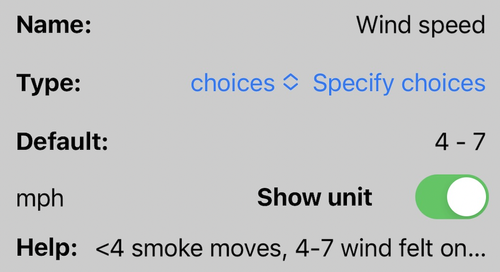
Example Form Field Specification
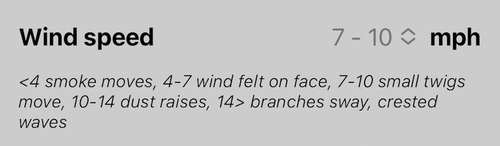
Create Log
Online Form Builder
Sometimes it is easier to work on a Mac/PC to build your form templates. The Configuration Builder is an online tool, free to use, to review and generate Form Templates.
Recording a Log
After saving an assignment, you can add a log by filling out a form. Access the Assignments list, locate the desired assignment, and select it. At the bottom of the assignment detail window, you will find the Log button.
Clicking this button will display available log form templates. Select the appropriate template, and the form will appear for data entry. Fields with list selections do not activate the keyboard. Pressing the return button on text or number fields dismisses the keyboard. For multiline text fields, press return twice to dismiss.
Exporting a Form Template
Go to Lokate > Settings > Form Template Builder, select the template and click the Share button at the bottom. This brings up the Apple share sheet with all shareable targets — you can store the export as a file or send it as a message.
Importing a Form Template
After importing, you may use the template immediately or edit it in the Form Template editor. To import:
- Select the import data shared with you via message or email
- Copy the text to the clipboard
- Go to Lokate > Settings > Form Template Builder
- Select the import button and paste the data
- Click OK to accept
Video Guides
Logging overview
Creating a form template
Creating a predefined list
Using Auto-Values